
How to Choose an SSD for a PC Upgrade: NVMe, SATA and M.2 Explained
- 13 Nov, 2026
If your PC still boots from a hard drive, or from a small first-generation SSD that is always full, a new solid state drive is the upgrade you will notice most in daily use. The catch is that “SSD” covers drives with very different connectors, speeds and lifespans, and some of them will not work in your machine at all. Check what your motherboard supports first, then decide how much speed you can actually use, and only then compare prices.
Step 1: Find out which drives your PC can take
Open the motherboard manual (or the support page for your laptop model) and look for three things:
- 2.5-inch SATA bays and ports. Almost every desktop has them. A 2.5-inch SATA SSD is a drop-in replacement for a laptop hard drive or an extra drive in a desktop.
- M.2 slots. Small slots on the board itself. Note how many there are and what each one supports, because one may be NVMe only while another also accepts M.2 SATA drives.
- The PCIe generation of each M.2 slot. The manual will list it as PCIe 3.0, 4.0 or 5.0, often with different generations for different slots.
Also check the small print about shared lanes. On some boards, filling a particular M.2 slot disables one or two SATA ports, which matters if you plan to keep your old drives connected. If you are planning a wider refresh, our guide to choosing a gaming motherboard explains how slots and lanes differ between boards.
SATA or NVMe: what the difference means in practice
The interface sets the speed ceiling. SATA III tops out at 600 MB/s in theory, and real SATA SSDs reach around 550 MB/s. NVMe drives talk to the processor over PCIe lanes instead, and their bandwidth roughly doubles with each PCIe generation.
| Interface | Typical top sequential read | Best use |
|---|---|---|
| SATA III (2.5-inch or M.2) | about 550 MB/s | Older PCs, laptop hard drive swaps, bulk storage |
| NVMe PCIe 3.0 x4 | about 3,500 MB/s | Boards that only have Gen3 slots |
| NVMe PCIe 4.0 x4 | about 7,000 to 7,500 MB/s | Most upgrades and new builds today |
| NVMe PCIe 5.0 x4 | up to about 14,000 to 14,900 MB/s | Heavy video work and large file transfers on Gen5 boards |
Those headline figures are sequential speeds, the best case for copying large files. Booting Windows, opening programs and loading games depend more on small random reads, where the jump from a hard drive to any SSD is huge and the gap between a good SATA drive and a Gen5 NVMe drive is far smaller than the numbers suggest. The move from SATA to NVMe is noticeable; the move from Gen4 to Gen5 rarely is outside big file transfers.
Newer drives are backwards compatible. A Gen4 or Gen5 drive works in an older PCIe slot, but it runs at that slot’s speed, so a Gen5 drive in a Gen4 slot costs more without being faster.
M.2 sizes and keys
M.2 is a shape, not a speed. An M.2 drive can be SATA or NVMe, and the label tells you which. The size code gives width and length in millimetres: 2280 (22 x 80 mm) is the standard size for desktops and most laptops, 2230 is the short version used in some compact laptops and handhelds, and 22110 is a longer size used mainly in servers.
Look at the notches on the connector as well. NVMe drives use an M key, a single notch, while M.2 SATA drives usually have B+M keying with two notches. The keying stops some wrong combinations, but a drive that physically fits is not guaranteed to work, so always match the slot description in the manual.
What separates a good SSD from a cheap one
Two drives with the same capacity and interface can behave very differently once you go beyond the headline speed. These are the details worth reading on the specification sheet:
- NAND type. TLC flash stores three bits per cell and QLC stores four. QLC makes large drives cheaper, but it usually has lower endurance and slower sustained writes once the drive’s fast cache is full. TLC is the safer choice for a system drive; QLC is fine for a game library or media storage that is written once and read many times.
- DRAM or DRAM-less. A DRAM cache holds the drive’s mapping table and keeps performance steadier under heavy workloads. DRAM-less NVMe drives borrow a little system memory through Host Memory Buffer (HMB) and are perfectly good for everyday use, boot drives and laptops.
- Endurance (TBW). Terabytes written is the warranty limit for how much data you can write. Popular 2TB TLC drives are rated around 1,200 TBW, far more than a typical home user writes over a five-year warranty. Compare TBW when two drives cost the same.
- Warranty. Five years is common on mid-range and premium NVMe drives. A short warranty on a cheap drive is a signal about its expected lifespan.
Heat and heatsinks
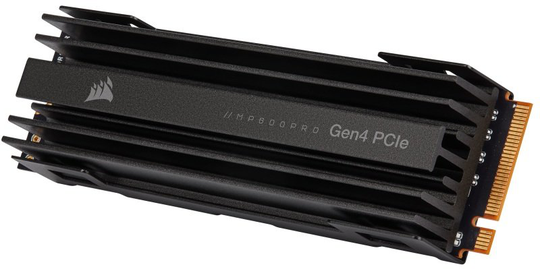
NVMe drives slow themselves down (thermal throttling) if they get too hot during long transfers. Gen4 drives generally run fine under the basic M.2 heatsink that most current motherboards include. Gen5 drives run hotter and often need a substantial heatsink and good case airflow. If your board has no M.2 cover, a drive with its own heatspreader, such as the Corsair MP600 PRO 2TB Gen4 NVMe SSD, is a simple solution. In laptops there is usually only a couple of millimetres of clearance, so choose a bare drive or a thin label-style heat spreader there.
How much capacity to buy
- 500GB: enough for Windows and everyday programs, but it fills quickly once you install games.
- 1TB: the sensible minimum for a single-drive gaming PC or a laptop that holds your photos.
- 2TB: the comfortable choice for most gamers and creators today, and often the best price per gigabyte.
- 4TB and above: large game libraries, video projects or replacing several old drives with one.
Leave some free space as well. SSDs slow down and wear faster when they are nearly full, so plan for the drive to be no more than about 80 to 90 percent used.
Upgrade checklist
- Confirm the slot type and PCIe generation in the manual.
- Back up anything important before you start.
- Install the new drive, then either clone the old system drive with the SSD maker’s migration tool or do a clean Windows install.
- If you cloned, set the new drive as the first boot device in the BIOS or UEFI and check that it boots before you wipe the old one.
- Keep the old SSD or hard drive as a second drive for backups and media.
Storage is only half of what makes an older PC feel slow. If Task Manager shows memory close to full while you work, pair the new drive with more memory: our guide on how to choose RAM for a PC upgrade explains how to check what your board supports before you buy, so you can plan both upgrades in one go.