How to Choose RAM for a PC Upgrade
- 12 Feb, 2026
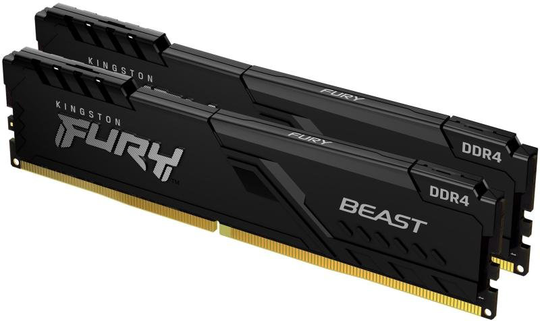
Adding more memory is one of the easiest and most affordable ways to make a computer feel faster. If your PC slows down when you have lots of browser tabs open, struggles with photo editing or stutters in games, a RAM upgrade may help. Choosing the right modules is not difficult, but there are a few details you need to get right, because memory that does not match your motherboard simply will not work.
Step 1: Check what your system supports
Before you look at any product, find out what your computer can take. The motherboard decides almost everything about which RAM you can use.
- Memory type. Desktop boards support either DDR4 or DDR5, and the two are not interchangeable. The slots are keyed differently, so a DDR5 module will not fit a DDR4 board.
- Number of slots. Most desktop motherboards have two or four memory slots. Smaller boards may only have two.
- Maximum capacity and speed. The motherboard manual or the manufacturer’s website lists the largest capacity and the speeds the board supports.
- Form factor. Desktops use full-size DIMM modules, while most laptops use smaller SO-DIMM modules. Some thin laptops have memory soldered to the board and cannot be upgraded at all.
You can also check what is currently installed using the task manager in Windows or a free system information tool. Note the type, speed and how many slots are already in use.
Step 2: Decide how much memory you need
The right amount depends on how you use your computer:
- 8GB is enough for basic browsing, email and office work, though it can feel tight with many apps open.
- 16GB is a comfortable amount for most home users and many gamers.
- 32GB or more makes sense for video editing, 3D work, virtual machines and heavy multitasking.
If you are not sure, it is usually better to buy a little more than you need today, so the system stays comfortable for longer.
Step 3: Buy a matched kit
Most modern platforms work in dual channel mode, where two memory modules work together for better performance. For this reason, it is usually better to buy RAM as a matched kit of two modules rather than a single stick. A kit such as this 16GB (2 x 8GB) DDR4 3200MHz kit gives you two identical modules that are tested to run together.
If you are adding memory to modules you already have, try to match the type, speed and capacity. Mixing different modules can work, but the system will usually run them all at the speed of the slowest stick, and in some cases it may not be stable.
Step 4: Understand speed and timings
RAM speed is shown in MHz or MT/s, while timings such as CL16 describe latency. Higher speed and lower latency generally mean better performance, but the difference in everyday use is often smaller than the difference in capacity. Some things to keep in mind:
- Check that your motherboard and processor support the speed you choose.
- Faster memory often needs a memory profile, such as XMP or EXPO, to be switched on in the BIOS. Otherwise, it may run at a lower default speed.
- If you are building a new DDR5 system, a kit like this 32GB DDR5 5600 kit is a sensible starting point for gaming and creative work.
Installing your new RAM
- Switch off the computer, unplug it and touch a metal part of the case to discharge static.
- Check the motherboard manual for which slots to use first. For two modules, these are often the second and fourth slots.
- Open the clips, line up the notch on the module with the key in the slot and press down firmly until the clips click into place.
- Start the computer and check that the full amount of memory is recognised. If you bought faster memory, enable its profile in the BIOS.
With the right modules in place, a memory upgrade can give an older system a new lease of life. Browse our memory category to compare DDR4 and DDR5 kits for desktops and laptops.